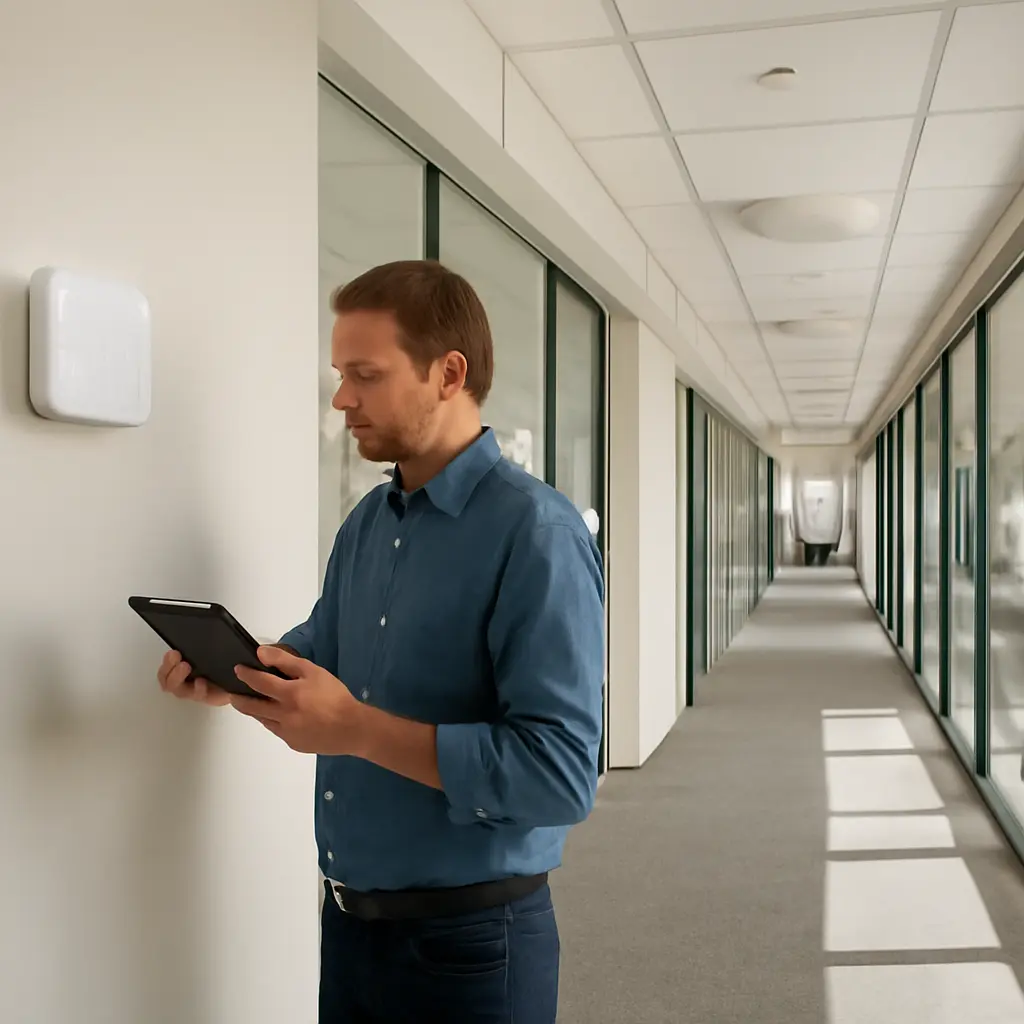
A wireless network is the system of routers, access points, devices, and radio signals that lets people connect to a local network and the internet without cables. Five signs it may need an upgrade are persistent dead zones, slow speeds despite a fast internet plan, frequent dropouts, difficulty supporting multiple devices, and outdated or insecure equipment. These symptoms matter as homes and workplaces add connected devices: Cisco’s 2024 Annual Internet Report forecast 29.3 billion networked devices globally by 2023, while the Wi-Fi Alliance continues to develop newer Wi-Fi generations to improve capacity, efficiency, and performance. The right response depends on whether the bottleneck is coverage, interference, equipment age, network configuration, or the internet connection itself.
Wireless network upgrade signs and what they mean
A network upgrade is a change to hardware, placement, configuration, or service that resolves a demonstrated performance or security limitation. The Federal Communications Commission (FCC) explains that Wi-Fi performance can be affected by distance, physical obstructions, interference, and the number of users sharing a connection. That means a weak signal does not automatically prove that a router is obsolete; checking the cause first helps avoid spending money on the wrong fix.
1. Dead zones persist in important areas
A dead zone is an area where a wireless device receives a weak or unusable signal. If video calls repeatedly fail in a home office, or point-of-sale devices lose connection at the back of a shop, the network may not provide adequate coverage. Walls, floors, metal objects, and distance from the access point can weaken radio signals; the FCC recommends placing a router in a central, elevated, unobstructed location when possible.
Try repositioning the router and testing several locations before replacing it. If the building is large or has thick walls, a properly configured mesh system or additional wired access point may provide more reliable coverage than a single router or an inexpensive range extender. The Wi-Fi Alliance describes Wi-Fi CERTIFIED EasyMesh as a standard intended to help compatible access points work together as a managed mesh network.
2. Real-world speeds fall short of expectations
Slow throughput is the amount of data the network can deliver over time. It becomes an upgrade signal when measured wireless speeds remain far below the internet plan’s expected performance across multiple devices and locations, even after basic troubleshooting. Internet speed tests measure the connection at a particular time; results can vary with congestion, the test server, the device, and whether the test is performed over Wi-Fi or Ethernet.
Compare a wired speed test with a wireless one near the router. If Ethernet performs well but Wi-Fi remains slow, the wireless equipment, radio congestion, or client device may be the bottleneck. If both are slow, the issue may lie with the internet service, modem, or provider rather than the Wi-Fi router. The FCC’s broadband consumer guidance emphasizes that advertised speeds and actual performance can differ, so repeated tests at different times are more useful than a single result.
3. Connections drop or latency disrupts calls and games
A dropout is an unexpected loss of connection; latency is the time required for data to travel between a device and its destination. Frequent disconnects, frozen video calls, or delayed game responses can indicate interference, faulty hardware, outdated firmware, or an overloaded network. The FCC identifies interference from nearby wireless networks and household electronics as factors that can affect Wi-Fi performance.
Before upgrading, restart the modem and router, install available firmware updates, and check whether dropouts affect wired devices too. If only wireless devices are affected, try a different Wi-Fi band or channel where the router allows it. If failures continue across devices after these checks, replacement may be justified—particularly when the router is no longer receiving security or stability updates from its manufacturer.
4. The network struggles when many devices are active
Capacity is the network’s ability to serve many connected devices and simultaneous activities without a substantial performance decline. Smart TVs, phones, laptops, cameras, and connected appliances all compete for airtime, though their demands vary: a sensor may use little bandwidth, while multiple high-resolution video streams can use much more. Cisco’s Annual Internet Report projected 29.3 billion networked devices globally by 2023, illustrating the broader growth in connected equipment, though that forecast is not a count of devices on any individual home network.
If performance collapses during video meetings, streaming, backups, or large downloads, first identify which devices and applications are consuming capacity. A newer router may improve how efficiently compatible devices share airtime, but it cannot increase the bandwidth of an undersized internet plan. For workplaces, an access-point survey and traffic review can help determine whether to add access points, connect stationary equipment by Ethernet, or upgrade the service tier.
5. The router is outdated or no longer receives security updates
An outdated router is not merely one that lacks the newest advertised speed; it may also lack security fixes, modern encryption support, or compatibility with newer devices. The U.S. Cybersecurity and Infrastructure Security Agency (CISA) advises users to change default passwords, keep software updated, and replace devices that no longer receive security updates. A router that cannot be patched leaves known vulnerabilities unresolved.
Check the manufacturer’s support page for the exact model and hardware revision, then confirm that automatic updates are enabled where available. Wi-Fi Protected Access 3 (WPA3), introduced by the Wi-Fi Alliance, provides newer security protections than older Wi-Fi security modes, but the router and connecting devices must support it to use it. If the router has reached end of support, replacement is a security measure as well as a performance decision.
Choosing the right wireless network upgrade
The most suitable upgrade matches the diagnosed problem. A stronger or better-placed access point can address coverage; a newer router may help with device handling and features; Ethernet can stabilize stationary equipment; and a faster broadband plan may be needed when both wired and wireless tests are consistently slow. The Wi-Fi Alliance’s Wi-Fi CERTIFIED 7 program, announced in 2024, includes capabilities designed for higher throughput, lower latency, and improved efficiency, but actual benefits depend on compatible routers, client devices, and network conditions.
- Map signal quality in the locations where people actually work, study, stream, or use business systems.
- Run several speed tests near the router and compare them with a wired test.
- Check router age, firmware status, security settings, and manufacturer support.
- Count active devices and note when slowdowns occur before selecting equipment or a service tier.
- For larger properties or workplaces, consider wired backhaul and professionally planned access-point placement.
Conclusion: act on the symptom, not just the speed label
Persistent dead zones, disappointing throughput, connection drops, congestion under load, and unsupported router firmware are five practical signs that a wireless network may need attention. Testing coverage, comparing wired and wireless performance, reviewing device demand, and checking security support can distinguish a router problem from an internet-service or placement problem. Start with those checks, then upgrade the component that addresses the evidence; for further guidance, consult the FCC’s consumer broadband resources, CISA’s home-network security recommendations, and the Wi-Fi Alliance’s certification information.
Sources: Federal Communications Commission, Wi-Fi and Internet Speed, https://www.fcc.gov/consumers/guides/broadband-speed-guide; Cisco, Annual Internet Report (2018–2023), https://www.cisco.com/c/en/us/solutions/collateral/executive-perspectives/annual-internet-report/white-paper-c11-741490.html; Wi-Fi Alliance, Wi-Fi CERTIFIED EasyMesh, https://www.wi-fi.org/discover-wi-fi/wi-fi-easymesh; Wi-Fi Alliance, Wi-Fi CERTIFIED 7, https://www.wi-fi.org/discover-wi-fi/wi-fi-certified-7; Wi-Fi Alliance, WPA3, https://www.wi-fi.org/discover-wi-fi/security; Cybersecurity and Infrastructure Security Agency, Securing Your Home Network, https://www.cisa.gov/news-events/news/securing-your-home-network